Hey there, fellow Pi lovers! If you’re anything like me, once you get your hands on a Raspberry Pi, you immediately start brainstorming all the wild, creative projects you can build—from a 24/7 wildlife camera in your backyard to a time-lapse of your plant’s growth, maybe even a security cam for your apartment. Last month, I got an email from a guy who’d just bought our latest Raspberry Pi Camera Module and spent three hours messing with it, convinced it was broken because he couldn’t get any video. Turns out he skipped a tiny step that’s so easy to miss if you’re new to Pi hardware. That’s why I wanted to put together this no-BS guide to installing the module—no jargon, no fancy tech degree required, just what actually works for anyone using our modules. I’m gonna walk you through every single part, from unboxing to getting your first shot, plus a few pro tips I’ve picked up from years of working with Pi camera gear. Raspberry Pi Camera Module
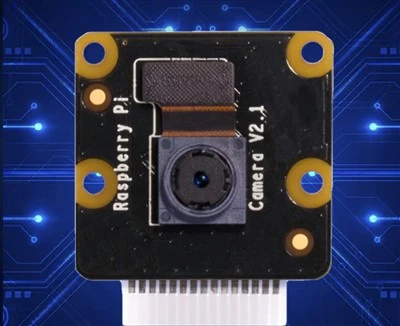
First things first—let’s make sure you’ve got the right stuff, because trust me, mismatched parts will make you want to throw your Pi across the room (ask me how I know). When you order a Camera Module from us, it comes with a few basics: the tiny camera board, a flexible ribbon cable (the thin, flat one—don’t lose this, it’s not cheap to replace alone), and sometimes a little protective case for the module if you opted for our outdoor-ready version. Wait, quick heads up: there are two main versions of Pi Camera Modules right now—V1 and V2 (the newer ones have way better low-light performance and higher resolution). If you’re using a Raspberry Pi 5, Pi 4, Pi 3, or Pi Zero W, either works, but double-check your Pi model because older Pi 1 Models A/B might need an older cable. Oh, and you’ll need your Pi itself, of course, plus a power supply, SD card with Raspberry Pi OS already loaded, and a screen or Wi-Fi to connect to your Pi remotely. No extra tools needed here—just your hands, that’s it.
Let’s start with the unboxing and prep, because I’ve seen people damage the ribbon cable before even plugging it in. That cable is fragile—those little copper pins on the inside? They bend super easy, and if they’re not straight, your camera won’t work. So first, pull the camera module out of the anti-static bag (don’t skip the anti-static step, either—static electricity fried a friend’s module last year, and he was not happy). Set the module on a soft surface like a towel so it doesn’t scratch the lens. Now, grab that ribbon cable: look at one end—there’s a tiny plastic tab at the top, and the other end is plain. The side with the tiny metal contacts goes toward the gold pins on the camera, right? Hold it like you’re handling a thin piece of paper, not a phone cable—no yanking, no twisting.
Next, we get to the part that trips up everyone: the camera port on your Pi. This is on the top of most Pi models (for Pi Zero, it’s on the side, so double-check your manual if you’re using a small Pi). It’s a little plastic slot with two parts: a top tab that lifts up, not pushes down. I know, I know—most ports push in, but this one’s different. Gently lift that tab up and away from the Pi body until it’s standing straight, almost 90 degrees. Don’t force it—if it won’t lift, you’re either doing it wrong or the port is dirty, so wiggle it a little. Now, take your ribbon cable and line up the notches: the cable has a small cut on one end, and the camera port has a tiny bump. Match them up! That’s how you know it’s going in the right way. Push the cable in all the way until it’s seated snug, then gently push that plastic tab back down over the cable. Make sure the tab clicks into place—if it’s loose, the cable will fall out mid-project, and you’ll be back to square one. Pro move here: I always press the top of the tab with my fingernail to make sure it’s locked, just to be 100% sure. No cutting corners here.
Wait, hold on—did I mention enabling the camera in your Pi’s settings? Because that’s the second biggest mistake people make. I once got a text at 2 a.m. from a customer who’d spent two hours installing the module, taking photos, and getting nothing, just because he skipped this step. So now, that’s step three, and it’s non-negotiable. First, plug your Pi into power, connect it to your screen (or use SSH if you’re into remote access), and boot up Raspberry Pi OS. Once you’re on the desktop, click the Raspberry Pi menu in the top left, hover over “Preferences,” then select “Raspberry Pi Configuration.” There, go to the “Interfaces” tab—you’ll see options for Camera, SSH, VNC, stuff like that. The Camera option is probably disabled by default (Raspberry Pi turns it off to save space). Toggle that switch to “Enabled,” then click “OK.” Now, your Pi will ask you to reboot—hit yes, wait a minute while it restarts. This is super important; if you skip the reboot, the Pi won’t recognize the new hardware.
Once your Pi is back up, it’s time to test the camera to make sure you didn’t mess up the ribbon cable. There are two easy ways to do this, depending on if you have a screen attached. If you’re on the desktop, open the Terminal (that black box with text, the icon is a little monitor with a prompt). Type in “raspistill -o test.jpg” and hit enter. Wait a couple seconds—you’ll hear a little click from the camera module, and a new file called test.jpg will pop up on your desktop. Double-click it, and boom—your first photo! If that doesn’t work, don’t panic. Most of the time, it’s the cable not seated right. Go back, lift the port tab, check the cable’s contacts to make sure none are bent, re-seat it, lock the tab, and reboot again. Another test is the video command: type “raspivid -o test.h264 -t 5000” (that’s 5 seconds of video) and hit enter. If you get a video file, everything is working. If not, hit up our support team, and we’ll walk you through it—no charge, because we want you to actually get your project going.
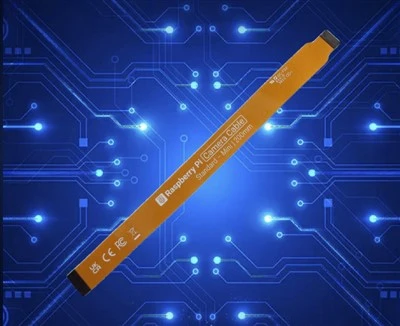
Now, if you’re using the Camera Module with a project, there are a few quick tweaks I wish I’d known when I started. First, for the ribbon cable: if it’s too short for your project, we sell longer replacement cables (15cm, 30cm, even 1 meter) that work with all our modules—no need to buy a whole new camera. For outdoor projects, our weather-resistant camera modules have a plastic case that protects the lens from rain and dust, but make sure you set the exposure to adjust for bright sunlight—type “raspistill -o sun.jpg -ss 1000000” (that’s a slower shutter speed for dark, or faster for bright—experiment!) to avoid overexposed photos. Also, if you’re using a Pi Zero, the camera port is smaller, so make sure you get the right cable for that model—we label our cables clearly so you don’t mix them up.
Quick side note: I get asked all the time if the Camera Module works with other Pi accessories, like the Pi Zero W or the Pi 5. Yep, it does—we’ve tested hundreds of modules with every Pi model, so you don’t have to worry about compatibility. We also offer pre-mounted modules if you don’t want to mess with the ribbon cable, which is perfect for beginners.
Now, I know some of you might be here because you want to take this a step further—like building a time-lapse of your apartment, or a bird feeder cam. Once your camera is installed, you can use simple scripts to automate that, but that’s a whole other post. For now, let’s keep it to the installation basics, because that’s where most people get stuck.
Wait, let’s recap to make sure we didn’t miss anything, because I always forget a step when I’m writing. 1. Prep: get your camera, Pi, cable, power, SD card. 2. Open the anti-static bag, handle the cable like it’s a credit card, line up the notches. 3. Lift the Pi’s camera port tab, insert cable, lock tab. 4. Enable camera in Pi config, reboot. 5. Test with raspistill or raspivid. That’s it—no magic, no confusing steps.
If you got this far and your camera is working, congrats! You just avoided the most common headaches new Pi users have with camera modules. But if you ran into issues at any point—bent cable pins, unrecognized hardware, wonky photos—we’re here to help. We’re a small team of Pi nerds, just like you, so we get that this stuff can be frustrating when you’re excited to start a project. If you need to order extra cables, replacement modules, or just have questions about your setup, feel free to reach out to our team to discuss your needs. We’ll hook you up with whatever you need to get your project off the ground, no fine print, no hidden fees.
USB 3.0 Camera Module References: Raspberry Pi Official Documentation, Adafruit Raspberry Pi Camera Guide, Official Raspberry Pi Camera Module User Manual.
Shenzhen Juchangxing Technology Co., Ltd.
We are one of the most experienced raspberry pi camera module manufacturers and suppliers in China, also support custom service. We warmly welcome you to wholesale durable raspberry pi camera module at competitive price from our factory. If you have any enquiry about cooperation, please feel free to email us.
Address: 3rd Floor, Build A, No. 8, Huangdiyin IndustrialZone, Longhua District, Shenzhen.
E-mail: sales@juchangxing.com
WebSite: https://www.jcxcamera.com/
